Support Me World Blog Provides Online Classes Tricks and Tips for: Android Computer, Internet ,Facebook, Youtube, Mobile, Google ,Twitter ,Yahoo internet security, Data Security, Discovering New Technology, Website Development , Design And Web Hosting Services / Domain Registration and Online Business Promotions Tips & Tricks Online Classes.

This is default featured slide 1 title

Go to Blogger edit html and find these sentences.Now replace these sentences with your own descriptions.This theme is Bloggerized by Lasantha Bandara - Premiumbloggertemplates.com.

This is default featured slide 2 title

Go to Blogger edit html and find these sentences.Now replace these sentences with your own descriptions.This theme is Bloggerized by Lasantha Bandara - Premiumbloggertemplates.com.

This is default featured slide 3 title

Go to Blogger edit html and find these sentences.Now replace these sentences with your own descriptions.This theme is Bloggerized by Lasantha Bandara - Premiumbloggertemplates.com.

This is default featured slide 4 title

Go to Blogger edit html and find these sentences.Now replace these sentences with your own descriptions.This theme is Bloggerized by Lasantha Bandara - Premiumbloggertemplates.com.

This is default featured slide 5 title

Go to Blogger edit html and find these sentences.Now replace these sentences with your own descriptions.This theme is Bloggerized by Lasantha Bandara - Premiumbloggertemplates.com.

10 Hidden tricks you didn't know your Android phone could do

10 Hidden tricks you didn't know your Android phone could do 


10 Hidden tricks you didn't know your Android phone could do
10 Hidden tricks you didn't know your Android phone could do 

1. Add a shortcut to My Apps in the Play Store

If you’re like me, you open the Play Store mostly for one reason: app updates. It’s important to keep your apps updated and to read about the changes. One of the newest Android features is called “App Shortcuts.” It allows you to long-press an app on your home screen and jump straight to a specific section. The Play Store has this for the “My Apps” section. You can put the “My Apps” shortcut directly on your home screen.
Note: This feature only works in Android 7.1+ or with certain 3rd-party launchers (such as Nova Launcher).
  1. Put the Play Store on your home screen if it’s not already
  2. Long-press the Play Store
  3. Long-press the My apps shortcut
  4. Drag it anywhere on the home screen and drop it
  5. Done!

2. Jump to App Info from the Recent Apps

Every Android app has an “App Info” page in the Settings. This is where you can disable, force stop, clear cache, reset defaults, and perform a number of other functions. The reason for visiting this page usually has to do with an app misbehaving. Navigating to the App Info page through the Settings app can be cumbersome. Thankfully, there is a much quicker method.
  1. Open Recent apps/Multitasking screen
  2. Find the app you want
  3. Long-press the app icon in the title bar
  4. Depending on your phone, it will jump straight to the App Info page or you’ll have to tap the (i) button
  5. Done!

3. Prevent nosy people from looking through your phone
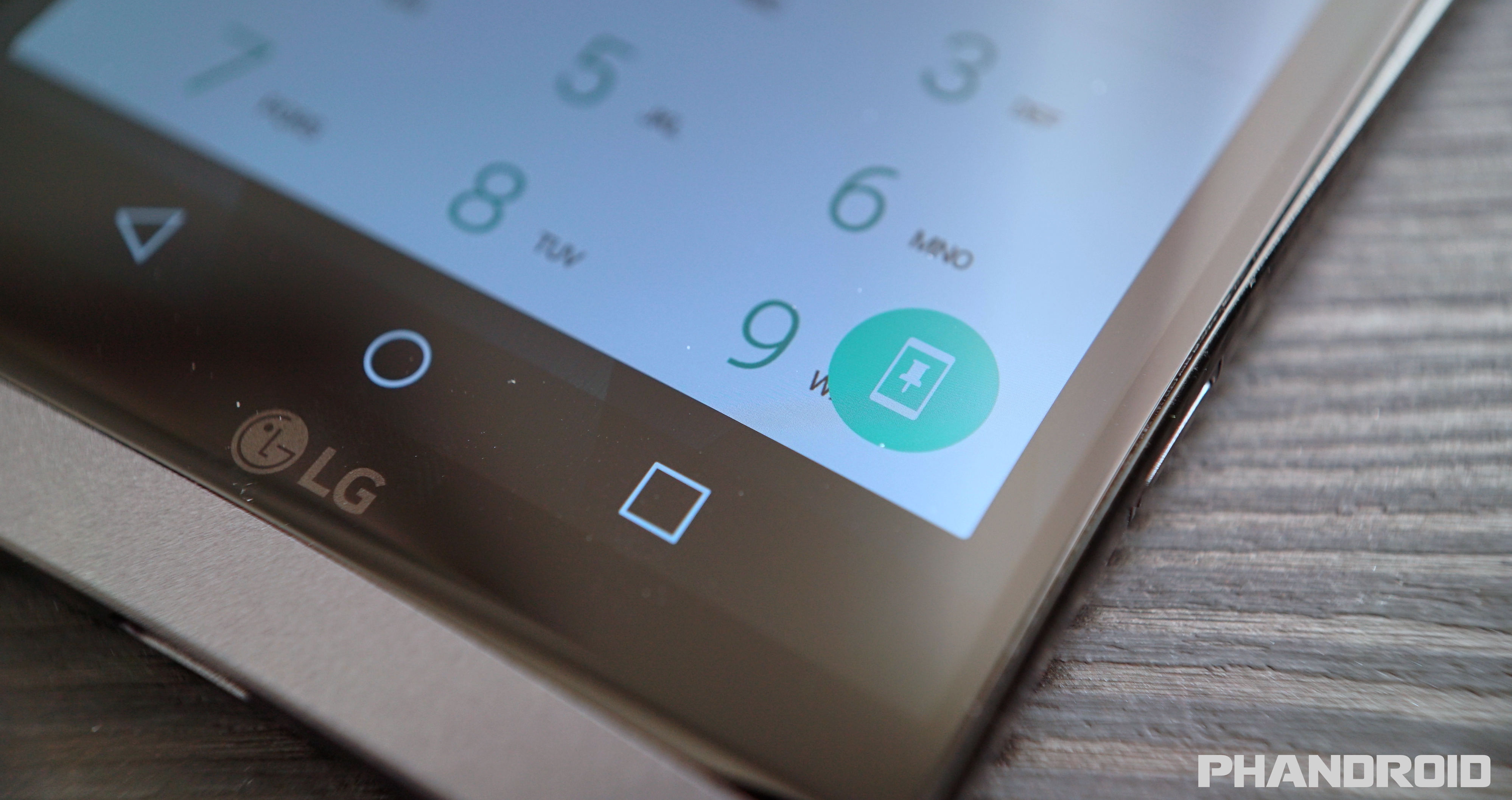
Your phone is full of personal information and sensitive content. It’s only natural to feel a little anxious when someone else has all of that information in their hands. “Screen Pinning” is a feature that gives you peace of mind when handing your phone to someone else. It allows you to “pin” an app so it’s impossible for someone to leave that app and look at other stuff on your phone. Only you can unpin the app.
  1. Open the Settings app
  2. Go to the Security section
  3. Find Screen pinning or Screen pin
  4. Turn it on and also make sure to enable the screen lock option
To use it:
  1. Open the app you want to pin
  2. Open the Recent apps screen and scroll up to reveal the pin icon
  3. Tap the pin icon and hand your phone off
To unpin the app, it’s usually something like long-pressing the Back button or long-pressing Back and Recent apps. Your phone will tell you how to do it.

4. Create custom Quick Tiles

One of the best new Android features you may not be aware of is custom Quick Settings Tiles. The Quick Settings is the area in the notification shade that allows you to quickly toggle on WiFi, Bluetooth, and a number of other things. You can rearrange these tiles to your liking, but what’s even better is to download more tiles from the Play Store. Here are a few to try out:
How to add a Quick Tile:
  1. Pull down the Quick Settings
  2. Tap the EDIT or pencil icon
  3. Find the tile and drag it to the Quick Settings
  4. That’s it!

5. Restrict apps from using data in the background

The unfortunate state of mobile data is that most of us have to make do with not enough of it. Making it to the end of the month without going over your limit can be a struggle, especially when apps are guzzling data behind your back. Android has had a feature for a while that can cut off data when you reach a certain point, but a new feature allows you to cut off data for specific apps. It’s a very powerful tool.
  1. Open Settings
  2. Go to Data usage > Data saver
  3. Toggle the switch on
  4. Tap Unrestricted data access
  5. Select the apps you want to allow to use mobile data
  6. Done!

6. Hide lock screen notifications from prying eyes

If you’re a smart smartphone user, you have some type of lock screen security. That should keep people from getting into your phone, but what about the stuff they can see on your lock screen? You could have an incriminating or personal information tucked in a text message for anyone to see. Thankfully, you can hide the content of your notifications on the lock screen. It’s very easy to do.
  1. Open Settings
  2. Go to Notifications or Sound & notification
  3. Tap the gear icon (skip if not on Android Nougat)
  4. Tap On the lock screen or Lock screen
  5. Choose from one of the options
    1. Don’t show notifications at all
    2. Show all notification content
    3. Hide sensitive notification content
  6. That’s it!

7. Use gestures on the Fingerprint Scanner
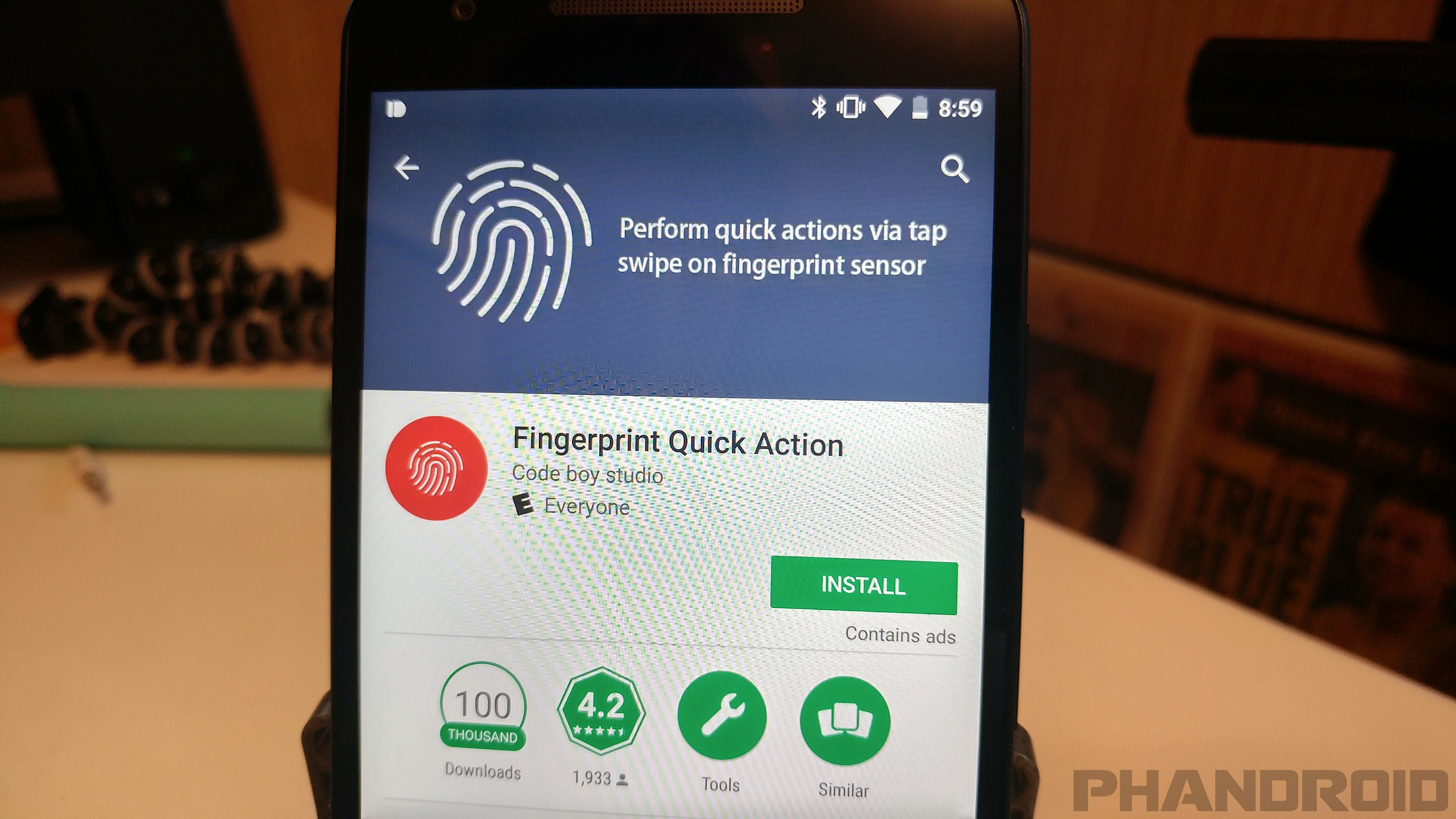
Most phones these days have fingerprint scanners. Other than the obvious fingerprint scanning, some phones use the scanner as a power button or home button. That’s basically the extent of the usefulness. What if you could use the fingerprint scanner for more? What if it could do anything you want? A very cool app called Fingerprint Quick Action can do just that.
  1. Download Fingerprint Quick Action
  2. Open the app and check the box to Enable Fingerprint Quick Action
  3. You’ll be asked to give Accessibility permissions. Tap OK and do it
  4. Return to the app and select an action for Single tap, Fast swipe, and Double tap
  5. You’re done!

8. Insert GIFs with the Gboard keyboard
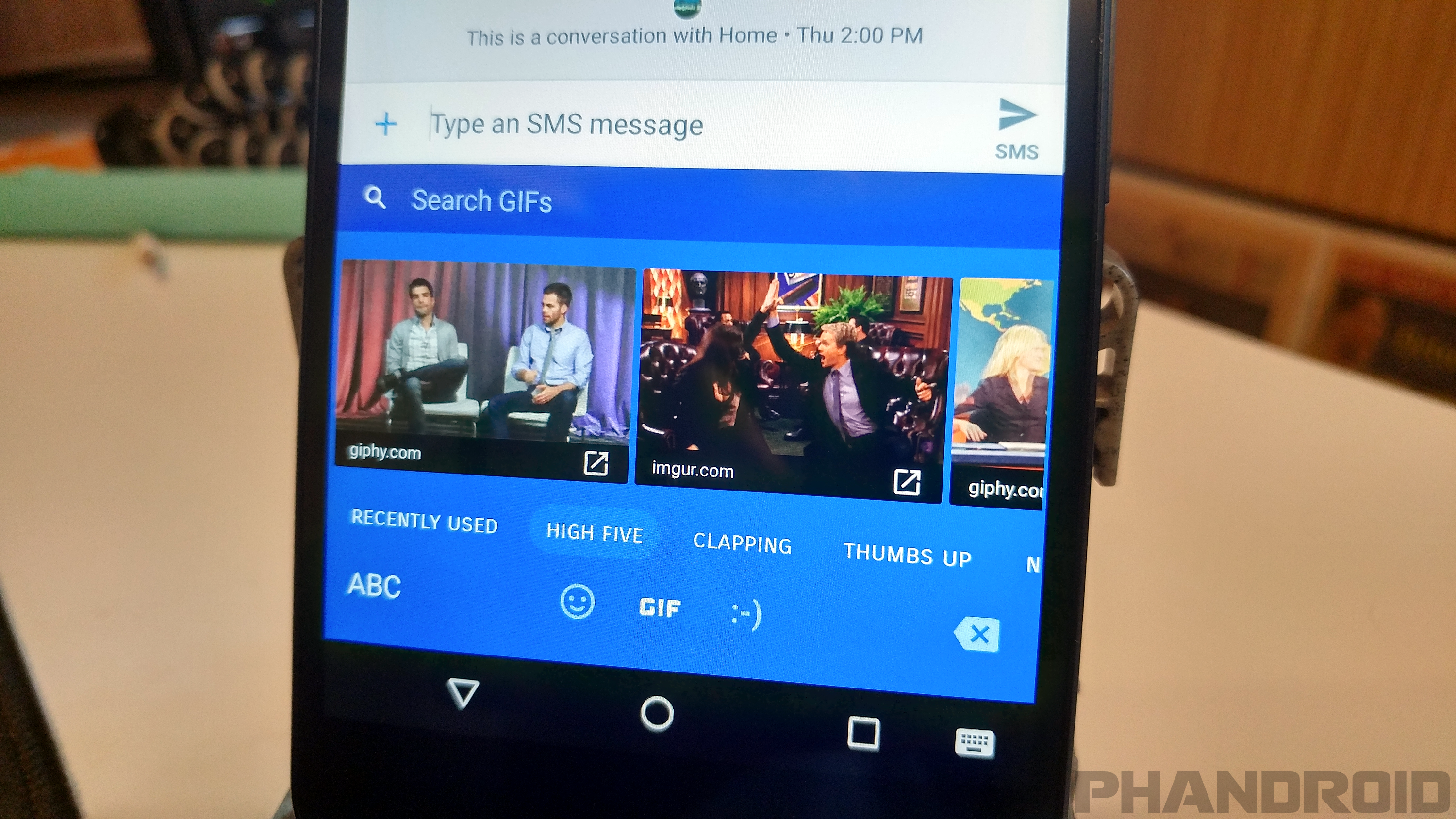
The right GIF can say a lot more than even the most finely crafted text message. There are plenty of ways to find GIFs on Android, but nothing is easier than having GIFs built right into your keyboard. Google’s own Gboard keyboard has the functionality. You can find the perfect GIF without leaving the current app. This feature isn’t supported in all apps yet, but more and more are jumping aboard the GIF train. You should too.
Install Gboard
  1. Download Gboard
  2. Go to Settings > Language & input
  3. Tap Current keyboard
  4. Select English (US) Gboard
Insert GIFs with keyboard
  1. Open a supporting app
  2. Start composing a message
  3. Press the emoji button
  4. Press the GIF button
  5. Browse categories or search for a specific GIF
  6. Select the GIF to use!

9. Locate and your lost or stolen phone

Losing your phone is one of the worst things that can happen. These devices contain sensitive information and private data. If your phone falls into the wrong hands it could put you in a world of trouble. There are apps you can download to help in the event of a lost phone, but in order for them to work you need to have them installed before something bad happens. Luckily there is a built-in way to find your lost phone and even wipe all of your personal data.
  1. Double-check to make sure Android Device Manager is installed
  2. Go to google.com/android/devicemanager
  3. Select your phone from the menu
  4. Now you can see the location, ring it, lock it, or erase it
Check out our in-depth guide on how to find lost or stolen phones.

10. Make your phone snappy with faster animations
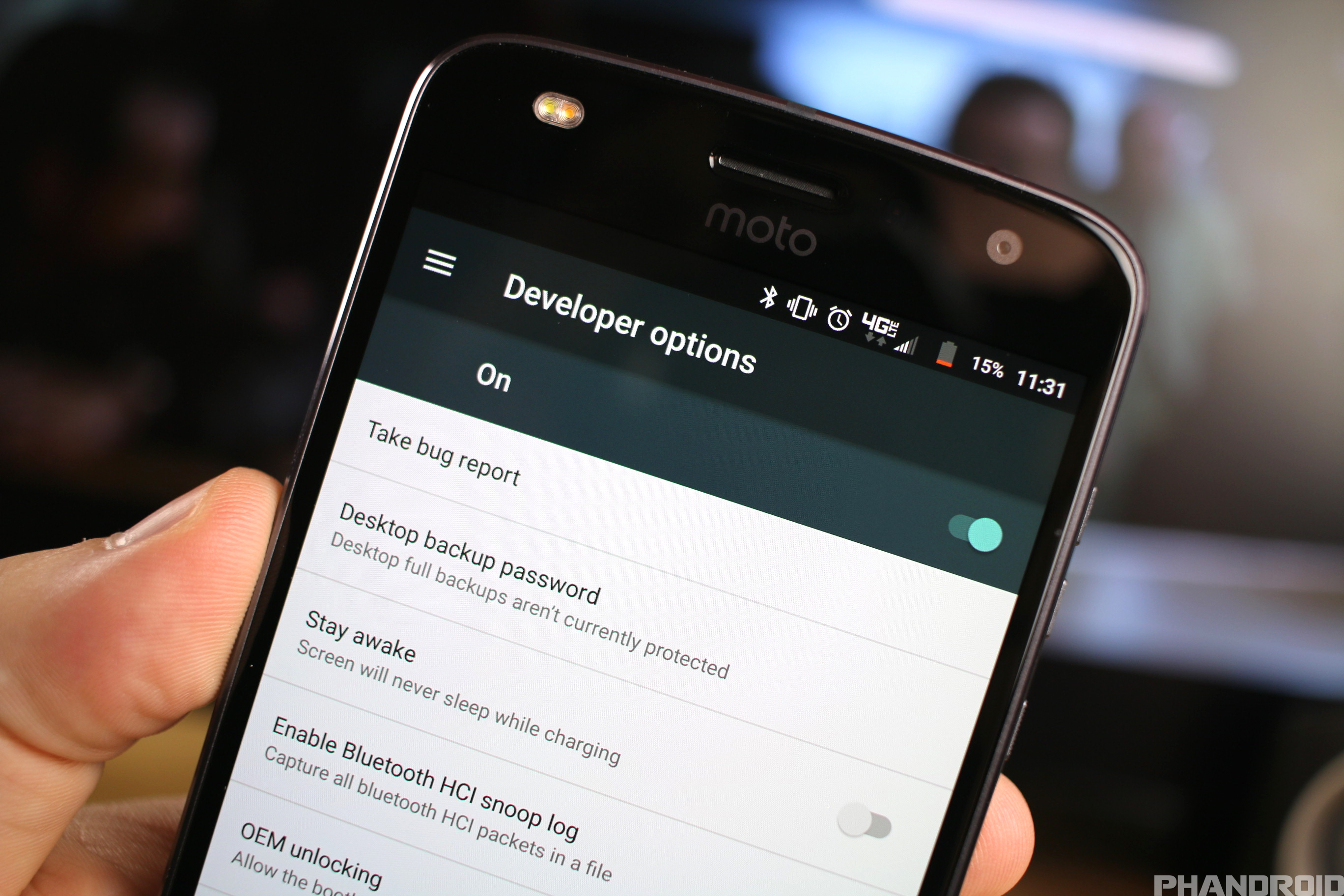
One of the most common complaints about Android is “lagginess.” In the last few versions they have made some serious improvements, but if you still feel like your phone is a little laggy there is a trick for speeding things up. Google has hidden some secret developer options inside the Settings. Inside the secret developer options are settings for animation and transition speed. Here’s how to speed things up.
  1. Open Settings > About phone
  2. Scroll down and tap on “Build number” 7 times
  3. Now go back to Settings and you should see new “Developer options”
  4. Adjust the window and transition animation scales to .5x or turn them off completely
Share:

computer mouse tips everyone should know

computer mouse tips everyone should know

computer mouse tips everyone should know


Take full advantage of the scroll wheel

Today, everyone is familiar with a mouse wheels ability to scroll up and down on a page. However, this wheel can also do so much more, below are just a few examples.
  • The mouse wheel is not just a wheel. It can also be used as a button. Pressing down on the wheel will acts like a third mouse button. The wheel button can be used to open a web page in a tab by clicking the wheel on any link and can also be used to close a tab by clicking the wheel on any open tab.
  • Zoom in and Out on a web page, word document, excel spreadsheet, etc. by holding down the Ctrl key and scrolling up to zoom in and down to zoom out.
  • Hold down the Shift key and scroll down in most Internet browsers to go back to the previous web page.
  • Some mouse wheels can be pushed left or right to also move back and forward between web pages.

Select with double and triple click

Any word can be selected by double-clicking the word. If you want to highlight the whole paragraph or sentence, click the mouse button three times on any word. Try it now on this paragraph by clicking three times fast on any word in the paragraph.
Bonus Tip: If you double-click and then drag your mouse, it will highlight one word at a time.

Use the right-click

Right-click menuTake full advantage of the right-click any time you highlight text or want to view the properties of an object. For example, if you highlight a file or text, you can right-click that highlighted item, copy it, and then right-click anywhere else to paste it.
Bonus Tip: If you highlight or select any file or text and then click and drag while holding the right mouse button, when you let go an option to move or copy that file is shown. This saves you the extra step of having to right-click where you want to paste the item.
Bonus Tip: While in a browser, pressing and holding Ctrl while clicking on any link opens a menu with options for that link.

Ctrl key and mouse click or highlight

While holding down the Ctrl key, you can left-click to select multiple objects or highlight multiple sections of text. For example, in the below selection box, if you wanted to highlight more than one of the items listed, you could hold down Ctrl and select each item you want highlighted.

Bonus Tip: Mozilla Firefox users can also hold down the Ctrl key and individually click on each cell in a table they want to copy. They can also hold down the Ctrl key and drag their mouse down a row to select just that row or text without selecting any of the other text in that table.

Use the mouse side buttons

Many new computer mice also have buttons on the side of the mouse. These buttons can be programmed to do anything. However, by default, the left-thumb button can be used to go back on a web page. Using the thumb button makes browsing the Internet more efficient since you do not need to move the mouse cursor to the browser's back arrow button to go back a page.

Use the Windows Snap To feature

Take full advantage of the Windows mouse Snap To feature, which will automatically move your mouse to buttons that appear in a dialog box. For example, if you delete a file or close a window, you may get a prompt asking you if you are sure you want to perform the task. With the Snap To feature enabled, the mouse cursor automatically moves to the Ok button, so all you have to do is click the left mouse button if you agree. This saves you the time of having to move the mouse cursor to the Ok button and then click Ok.
To enable this feature, open the Mouse properties under the Windows Control Panel and check the Snap To check box under the Pointer Options tab.
Bonus Tip: While changing this feature, we also suggest looking at other available options in the Mouse properties. For example, increasing the Motion speed can also help increase your productivity while using the mouse.

Manage the open window with the mouse

Double-click the top title bar of any window to maximize a window or, if it is already maximized, resize it to a smaller window. You can also double-click the icon for the window in the top-left corner of the window to close that window.

Move the mouse with your keyboard

Instead of using the mouse that came with your computer, you can also enable Windows to use the number pad as a mouse.

Customize your mouse

Finally, if you have a mouse with more than two buttons, installing the included mouse software allows you to customize the mouse even more. For example, if you don't use the side buttons to move back and forth in a web page, change it to something you do more often, such as switching between open windows or opening the calculator.
Share:

All In One Frp Tool Pack Download Free| All latest FRP Unlock Tools 2018

All In One Frp Tool Pack Download Free| All latest FRP Unlock Tools 2018


All In One Frp Tool Pack Download Free| All latest FRP Unlock Tools 2018


Android Tool Collection  List


  1. Android Helper Tool
  2. Naing Unlocker Tool
  3. Oppo Model Finder Tool
  4. Ghost Push Killer Tool
  5. Qualcomm IMEO Tool
  6. Unlocker V3 Tool
  7. MAD Unlock Tool
  8. Samsung FRP Tool
  9. Xiaomi Tool Pro
  10. MAM ToolV(1.0.3)
  11. Xiaomi Model Finder Tool
  12. Aio Driver
  13. Mi Pass Pin Unlock Tool
  14. Mi Account Unlock Tool
  15. SRS Samsung Tool
  16. MTK Imei Fixer Tool
  17. Aio Font installer Tool


Password: Technical Computer Solutions
Price: Free
Size: 135MB
Download Link:: google drive download
Share:

GSM Aladdin V21.42 With Keygen Without Box Download

GSM Aladdin V21.42 With Keygen Without Box


Hi friends, is video mein maine aapko btaya hai ki ap log kis tarha se GSM Aladdin V21.42 Ko kaise Cracked Kar Sakte hain Without Box For Lifetime tu is video ko watch karo aur aapne Mobile Flashing Ki Kam Ko Aur Ziada Karo,


Hello Friends, Welcome To My Channel Today in this video you will be learned "How To Setup GSM Alladin Box Without Box Crack Lifetime Version 2017" By (M.Waqar Khan) In Urdu/Hindi Language, In this Video Tutorial Complete Step-By-step Guide. To Setup (Alladin Box ) Hello Friends, is video mein maine aapko btaya hai ki ap log kis tarha se (GSM Alladin Box) Ko kaise Cracked Kar Sakte hain Without Box For Lifetime tu is video ko watch karo aur aapne Mobile Flashing Ki Kam Ko Aur Ziada Karo,
Technical Computer Solutions provides basic Computer Tips and Tricks, Blogging, SEO, WordPress, Installation Guide, Video Mixing, Mobile Flashing Tools, Mobile Flashing Tips and Tricks, technology related education for free and Many More, you can ask a question about your problems, request for a video, contact form, or discussion page, ask quick questions on me and our team feedback, and you can also experience problems on your site by sharing your knowledge of others or on the discussion page Are there.

GSM Aladdin Crack

GSM Aladdin the tool of excellence.Which helps the users to repair their mobile. It’s also the best software for flashing and unlocking. It has a friendly interface and easy procedure.You can use this software in all MTK based devices. Thus you can use it with no tension. It’s a small application for Windows PC which allows flashing the smart phones and tablets. The tool supports various kinds of things. Such as phone unlocking, read pattern lock, wipe user data, temporary root and reboot.
Feature’s of the GSM
The GSM Aladdin Can do some important task. The tremendous feature’s make it great. Here are some other features :

  • – Read the pattern lock code.
  • Read, write and format the IMEI.
  • Flashing the Android.
  • Repair the Wi-Fi.
  • Contact backup
  • Reset the face lock
  •  Languages enable
  • Format the Android
  • Read and write the EMMC pattern code
  • Write security and unlock the Samsung phone.
  • Read, write and reset the password of Nokia.
  • Unlock NCK of HTC.

How to install

It comes with a very easy user- interface. For this reason, everyone can easy to use it. Follow the instruction below:
  1. Download the GSM Aladdin V2.1 from our blog www.xdarom.com.
  2. Extracts the file.
  3. Turn on USB mode from the phone setting.
  4. Connect the phone to the computer.
  5. Switch off the mobile.
  6. Run the dot .exe file.


Operating System
The software runs on Windows 7, Windows 8, Windows 8.1, Windows 10, Windows XP and Windows Vista ( 32 bit and 64 bit ). The GSM is friendly with the operating system.
Download
You can download the GSM Aladdin Crack V2 1.40 Crack Setup. It’s free to download on the internet.You can get its full setup installer for Windows. We always provide a download link. The first version of GSM Aladdin software released on July 26, 2016. It is the best software for repairing tool for Chinese phones.

Conclusion

Repairing, flashing and unlocking is the most important task an Android device. GSM Aladdin needs for the repair, unlock and flash the Android. It’s a reliable tool for the Android users. Infinity-box.com invents and distributes the GSM Aladdin V2 1.40. So, full credit goes to them. Everybody can download and install it with great confidence. Here We present a fully functional virtual comport creator.

Use Password: minoaker

Share:

Miracle Box 2.27A full version crack "without box" full 100% working

Miracle Box 2.27A full version crack "without box" full 100% working

Miracle Box 2.27A full version crack "without box" full 100% working


Free Download and Install Miracle box 2.27A | Full crack | Without box | latest version | Hindi


Miracle box is software which solves many major problems in china mobiles. Many MTK chipset mobiles, buttons mobiles can be repaired using Miracle Box. IMEI repair without flash, flash Stock firmware, etc are major features of Miracle Box setup full version. Repairing the china mobiles for a Miracle box is simple.Miracle Box uses Fuzzy logic Method to repair your android china Phones. Since fuzzy logic is safe and reliable, Miracle Box latest setup users are increasing day by day. Miracle Box can repair Most MTK/SPC/QUALCOMM android smartphones including Vivo, Oppo, Samsung, all other China Models. Miracle Box latest setup can also repair CDMA china phones which is the unique feature.Miracle box is an engineering tool for wide range of Chinese model phones. By using of Miracle box users can perform many tasks on android phones like flashing, mobile unlocking, IMEI number repairing and software repair operations. We can say its an all-In-One android solution device. But users have to buy Miracle box from market and its available approx 3500 to 5000 Rs in India.Free Download and Install Miracle box 2.27A | Full crack | Without box | latest version | Hindi.

Disclaimer:-

Please read the terms and conditions 
carefully before using Miracle Box 2.27A Full Crack Use of this software indicates you accept the terms of this license agreement and warranty. Miracle Box 2.27A Full Crack (this software) is provided "as-is" and without warranty of any kind, express, implied or otherwise, including without limitation, any warranty of merchantability or fitness for a particular purpose. In no event shall the author of this software be held liable for data loss, damages, loss of profits or any other kind of loss while using or misusing this software.

Miracle Box 2.27A full version crack "without box" full 100% working


Tool Features:-

Repair IMEI without Flash.
First & Biggest Flash File Library in the world.
Support latest MTK CPU.
Support latest SPD CPU.
Support latest RDA/COOLSAND CPU.
Support latest MSTAR CPU.
Auto IMEI Repairing with Fuzzy Logic technology.
Best Auto Pin Finder.
Read/Backup SPD/MTK Mobile contacts.
Network Unlock MTK 65xx CPU based phones.
Auto Update.
Format with advanced options.
Big Support Team.
First Multilingual Software Interface in the world.
USB & Pin Finder Connectivity.
Support CDMA phones.
Support Blackberry phones.
Support Samsung phones.
Best Android phone repair features.
Auto connects Android phone info bar.


Supported Devices:-

Latest MTK
Latest SPD
Qualcomm
COOLSAND/RDA
MSTAR
Blackberry
CDMA Mobiles


Flashing With Miracle Crack:-

As we all know miracle box 2.27A is ultimate mobile flashing tool for all most all android and feature mobile. You can use miracle 2.27a flash tool for different tasks like stock ROM flashing, frp unlock, factory reset, unlock pattern lock & PIN password etc. Just because of this we can’t describe all feature of Miracle box in this single post.So here we are including only quick flashing steps for MTK android mobile.

1.First off all, download and install supported USB drivers. [Driver installation is must]
2 Select “MTK” tab if you are using MTK [MediaTek] chipset android mobile.
3.Again select “WRITE” option into MTK Tab.
4.Now select Chipset version according to your device. [Do Google to know your mobile chipset]
5.In next step, select firmware/Stock ROM of your mobile.
6.If everything is ok then click on “START” button to start the flashing process.
7.Power off device, hold BOOT key of your device and attch it with pc via USB cable.
8.Once your device will be detected by miracle tool, flashing process will start and device will flash in few minutes.

Compatibility:-Compatible For all Windows computer.
▪windows xp,
▪Windows 7,
▪Windows 8,
▪Windows 8.1,
▪Windows 10  (64bit & 32bit)

Licence:-Miracle Box 2.27A crack tool is free utility tool.

Restriction on use:-This software must not be decompiled,disassembled,reserve engineered or otherwise modifed.

Copyright (c):-Miracle Box 2.27A crack tool All right reserve.


Note:-Buy Only Original Tool From ManufacturersAny crack on this site is uploaded only for learning purpose, we are not soul responsible for any miss use or wrong results We also condemn illegal use of any stuff which is copied from here.Free Download and Install Miracle box 2.27A | Full crack | Without box | latest version |


•File Name:-Miracle Box 2.27a
•Download Version:-2.27a
•File type:-compressed/Zip File
•File Size:-83 MB
•Virus status:-scanned by Avast security.

password:-sahiltech

Share:

Search This Blog

Powered by Blogger.
  • ()

Recent Posts

Unordered List

Pages

Theme Support